Install Transformer Lab for Individuals
For install instructions for Transformer Lab for Teams, go here.
Pre-Requisites
- MacOS , Linux , or Windows (inside WSL2)
- Git and curl installed
Step 1. Install Transformer Lab
curl https://lab.cloud/install.sh | bash
Step 2. Run Transformer Lab
cd ~/.transformerlab/src
./run.sh
Step 3. Access the Web UI
You can now go to any modern browser and visit the URL of the server that was run by the previous command. For example if you are running on localhost, open Firefox or Chrome and visit:
http://localhost:8338
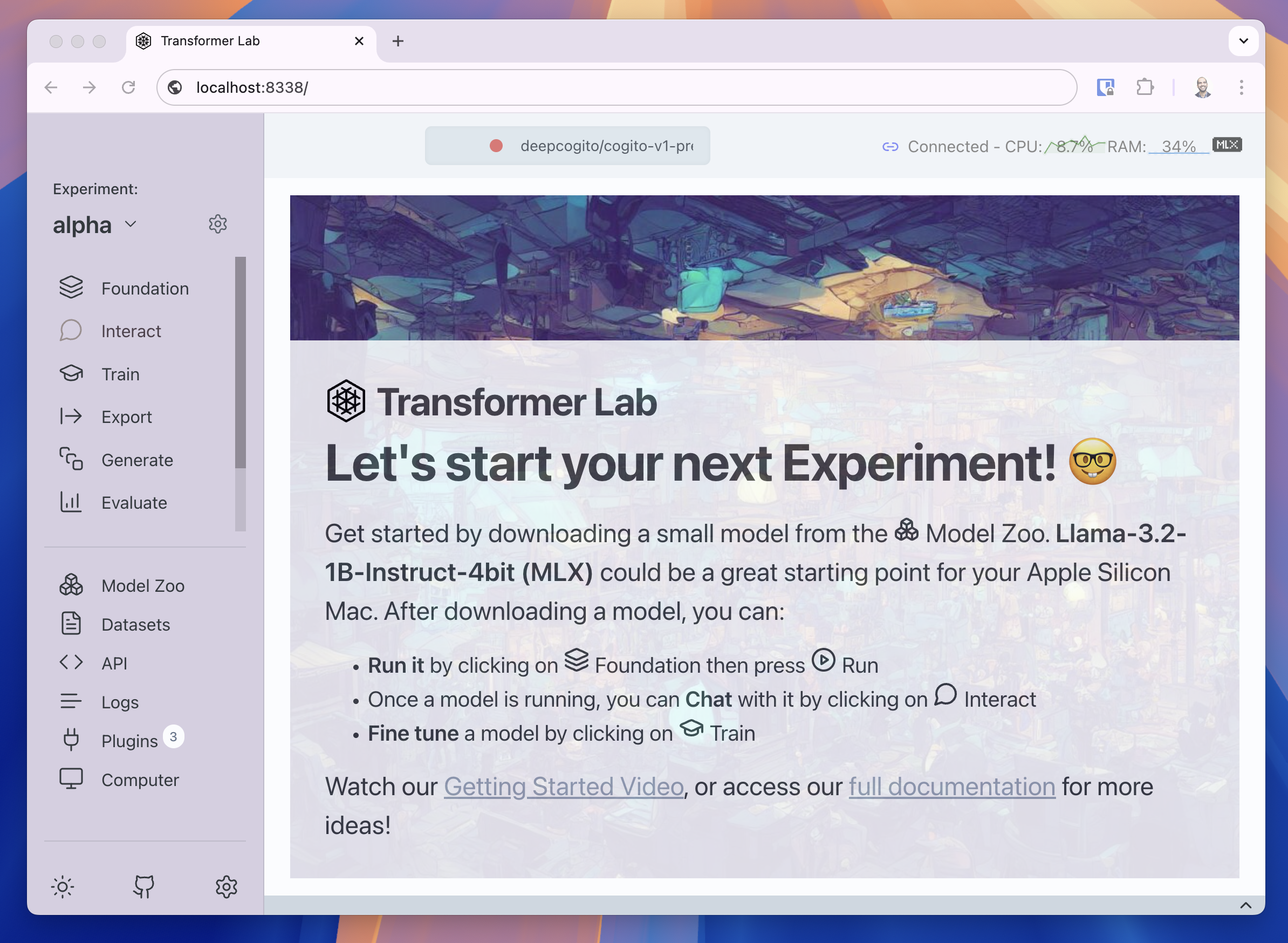
Here is a screenshot of what you should see:
Platform Specific Tips:
Windows
- Make sure you have WSL and CUDA drivers installed (detailed instructions here)
Linux
Transformer Lab should work on most distros of Linux that support your GPU. We recommend PopOS because it has great support for automatically installing NVIDIA drivers.
If you have a machine with an AMD GPU, follow the instructions here.
Step 1 - Ensure NVIDIA Drivers are Installed
If you installed PopOS you will have the option to select an NVIDIA enabled version of PopOS installed by default. You can test that NVIDIA support is successfully installed by running the following command in a command prompt and you should get output similar to what is shown below:
nvidia-smi
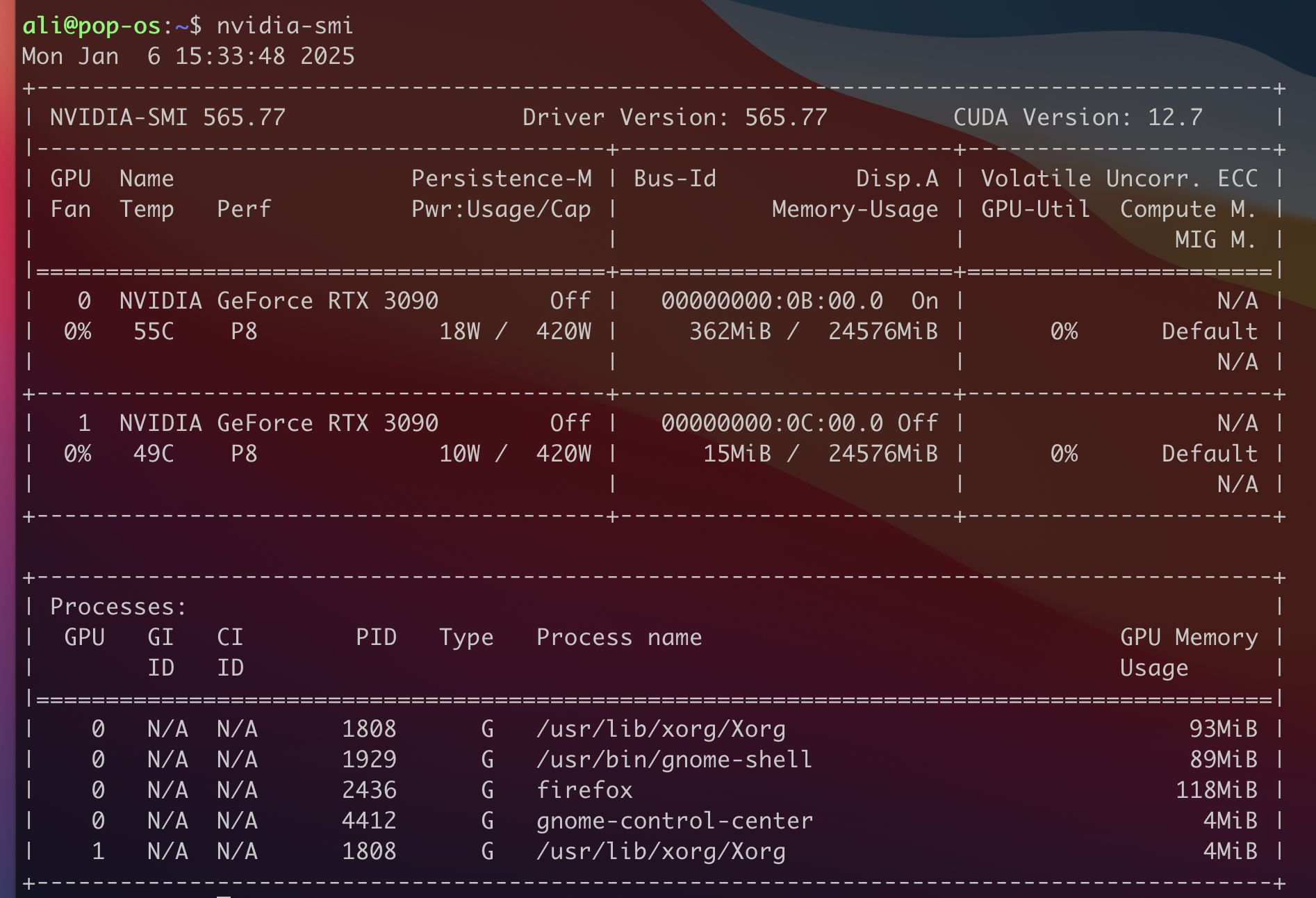
If this worked, congratulations, NVIDIA support for your Linux install is working and you can proceed with downloading and installing Transformer Lab.
If you need to install the nvidia drivers from scratch, there are instructions below for different versions of Linux: