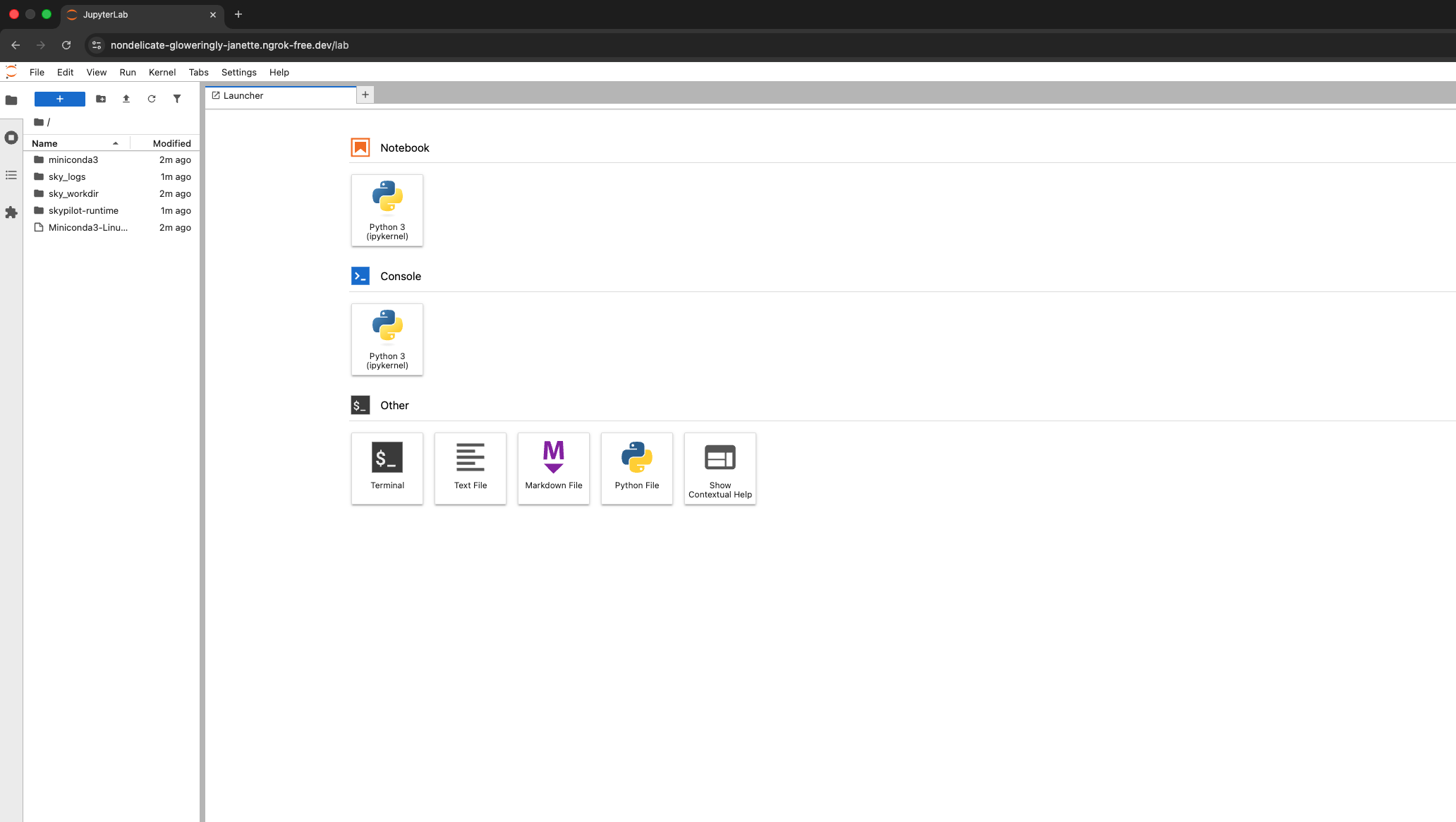
Run a Jupyter Notebook
Running a Jupyter Notebook Service
Interactive services in Transformer Lab allow you to launch environments like Jupyter Notebook directly from the interface. This guide walks you through running a Jupyter Notebook service.
Prerequisites
Before running a Jupyter Notebook service, ensure you have a Compute Provider set up and active.
-
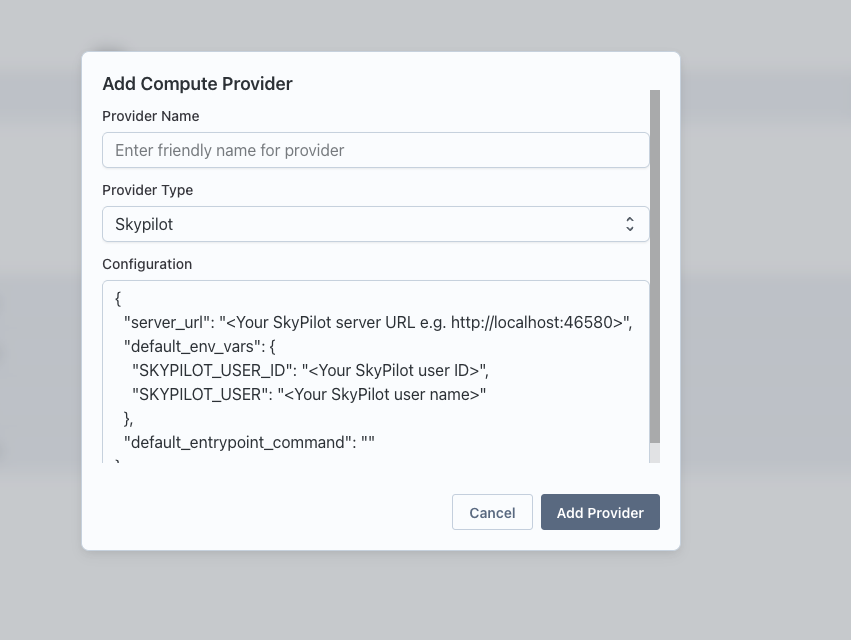
Navigate to Team Settings and set up a Compute Provider.
-
Make sure the provider is active by clicking on the health button.

Steps to Run a Jupyter Notebook Service
-
Go to the Interact page in Transformer Lab.
-
Click on the "New" button to create a new interactive service.

-
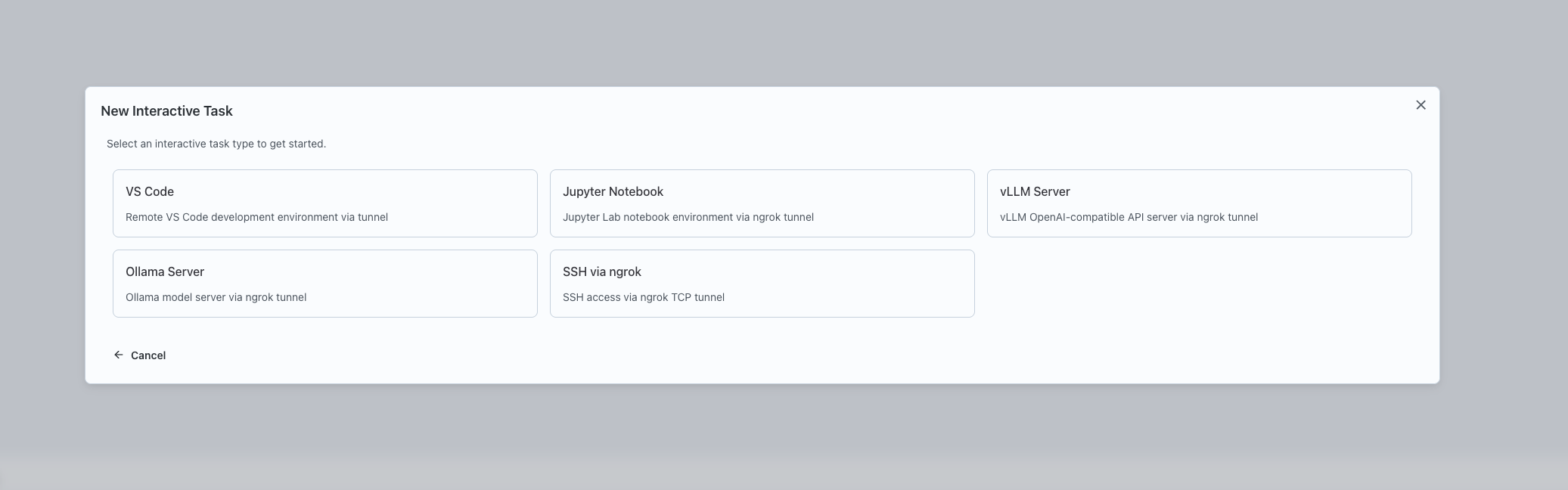
Select "Jupyter Notebook" as the type of interactive service to launch.
-
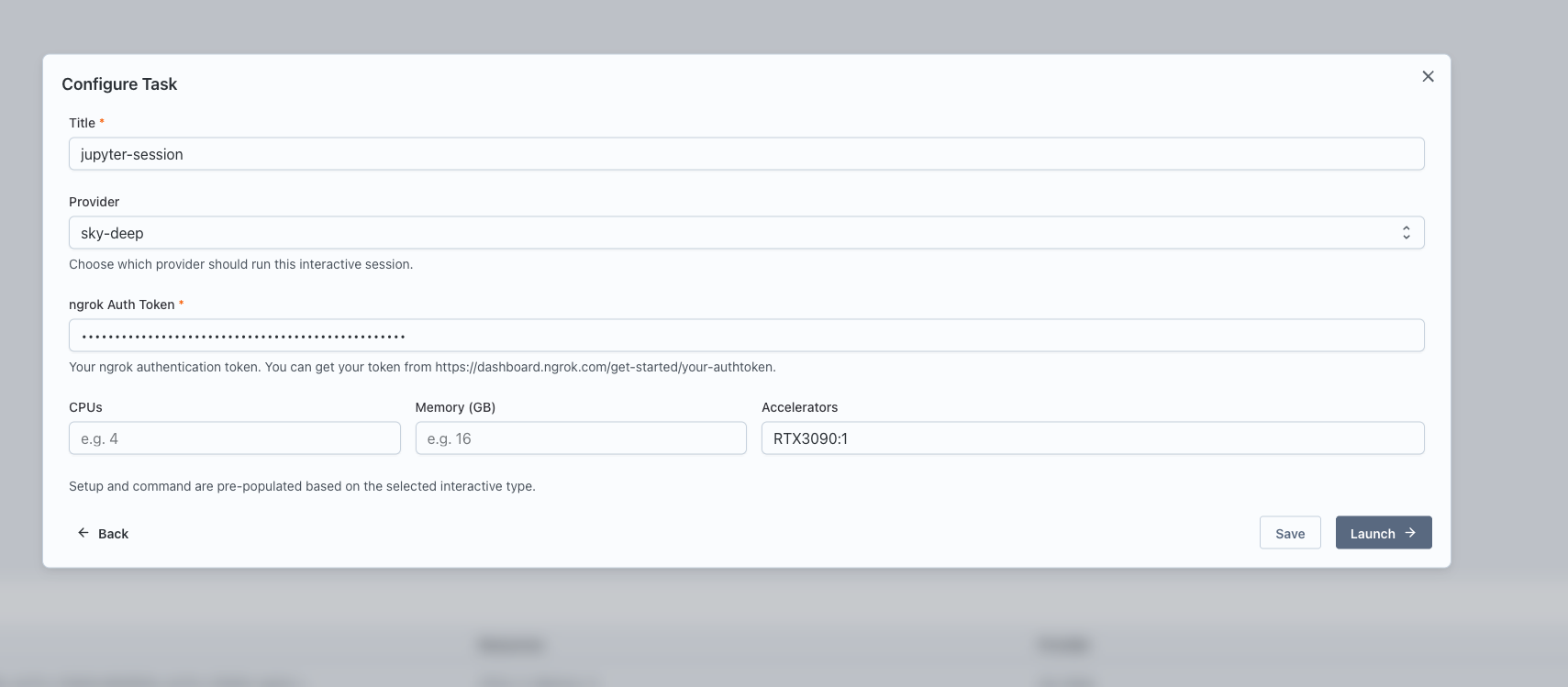
Configure the service:
- Enter a name for the service.
- Select the Compute Provider to use.
- Specify the resources: CPU, memory, and GPUs.
- Provide any additional inputs if required (e.g., ngrok auth token for tunneling).
-
Click "Launch" to start the Jupyter Notebook service.
-
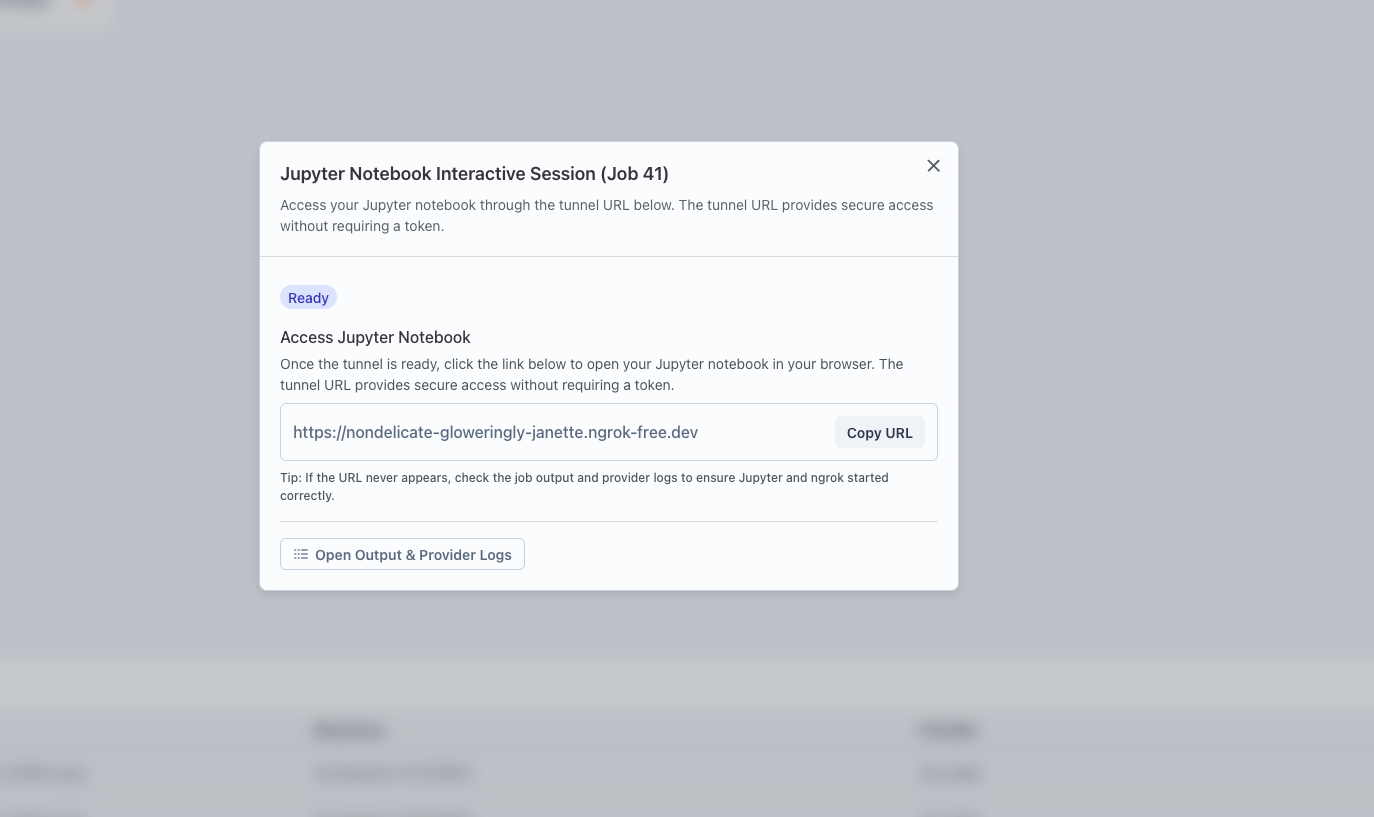
Once launched, a card will appear for the service. Click the "Interactive Setup" button on the card.
-
Follow the provided URL or steps to access the Jupyter Notebook.