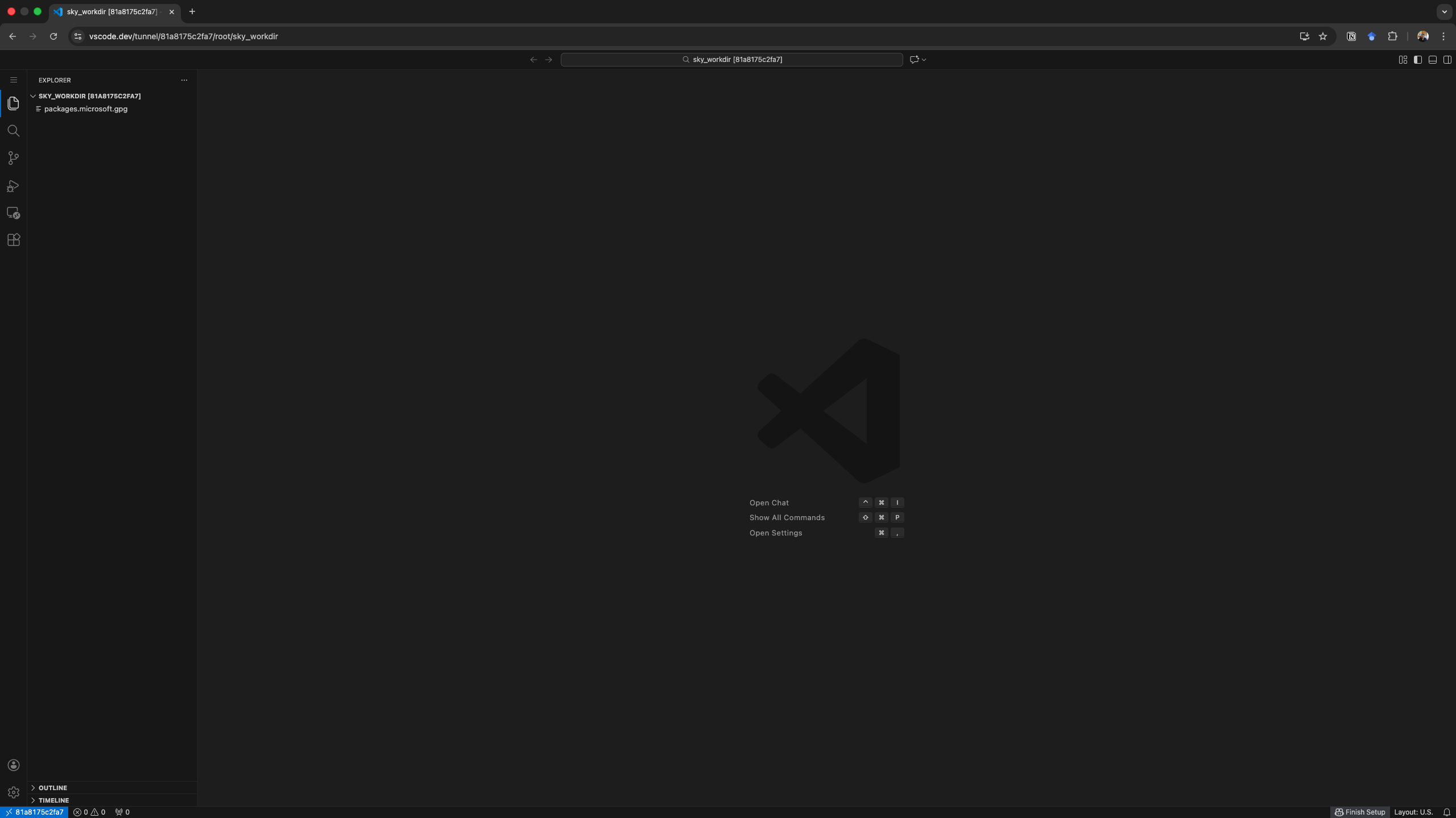
Run VSCode on a Remote Machine
Running a VSCode Service
Interactive services in Transformer Lab allow you to run VSCode on a remote machine using the official VSCode tunnels implementation. This guide walks you through running a VSCode service.
Prerequisites
Before running a VSCode service, ensure you have a Compute Provider set up and active.
-
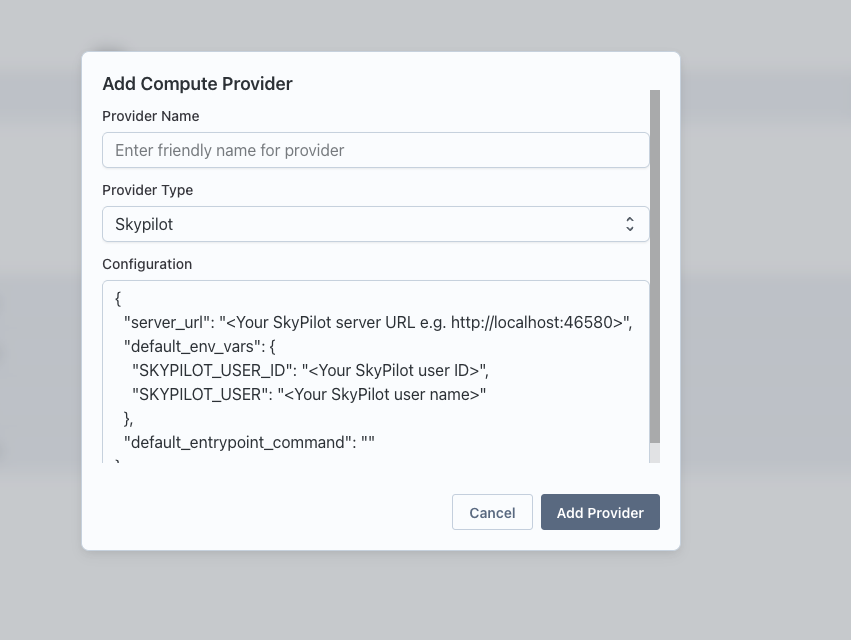
Navigate to Team Settings and set up a Compute Provider.
-
Make sure the provider is active by clicking on the health button.

Steps to Run a VSCode Service
-
Go to the Interact page in Transformer Lab.
-
Click on the "New" button to create a new interactive service.
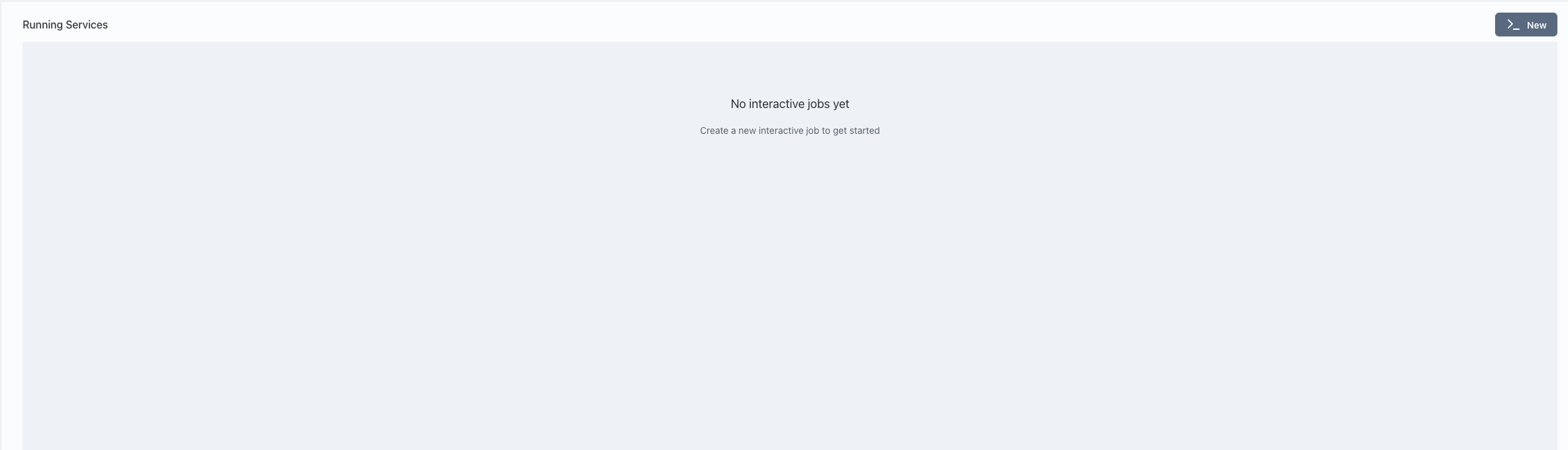
-
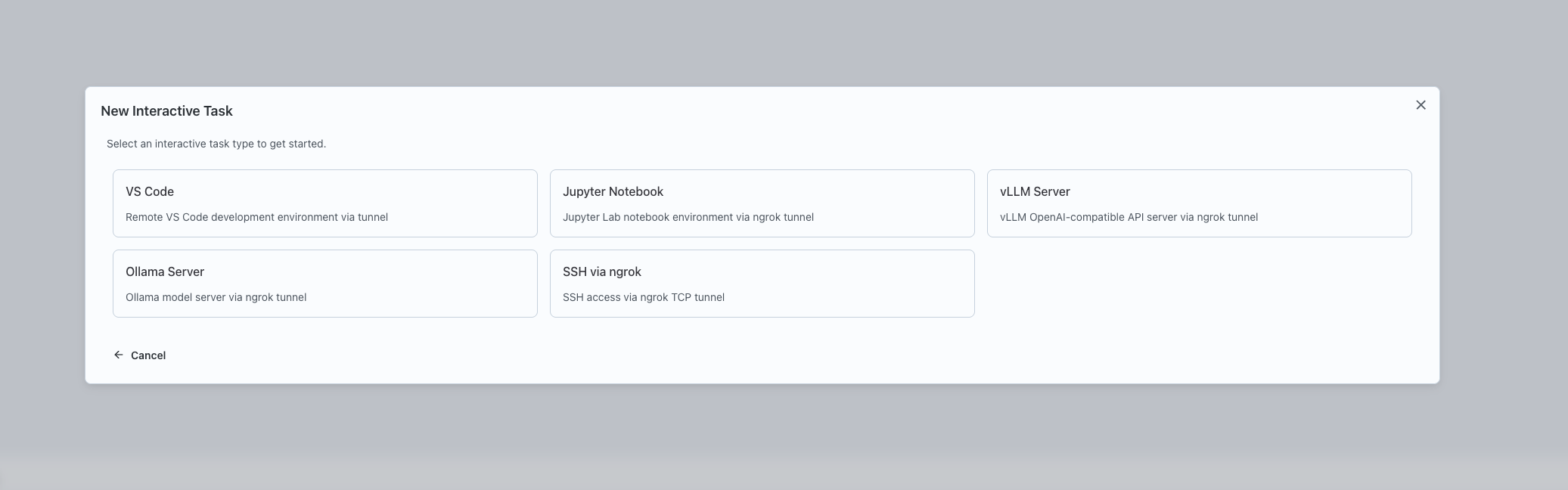
Select "VSCode" as the type of interactive service to launch.
-
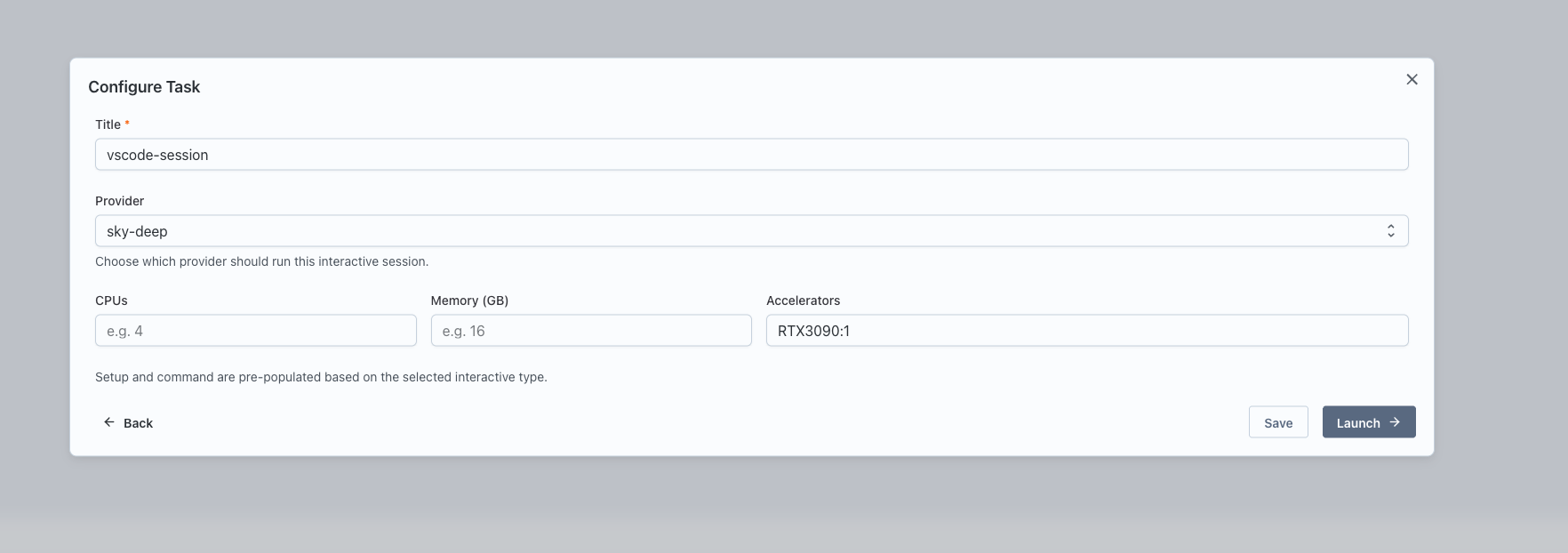
Configure the service:
- Enter a name for the service.
- Select the Compute Provider to use.
- Specify the resources: CPU, memory, and GPUs.
-
Click "Launch" to start the VSCode service.
-
Once launched, a card will appear for the service. Click the "Interactive Setup" button on the card.
-
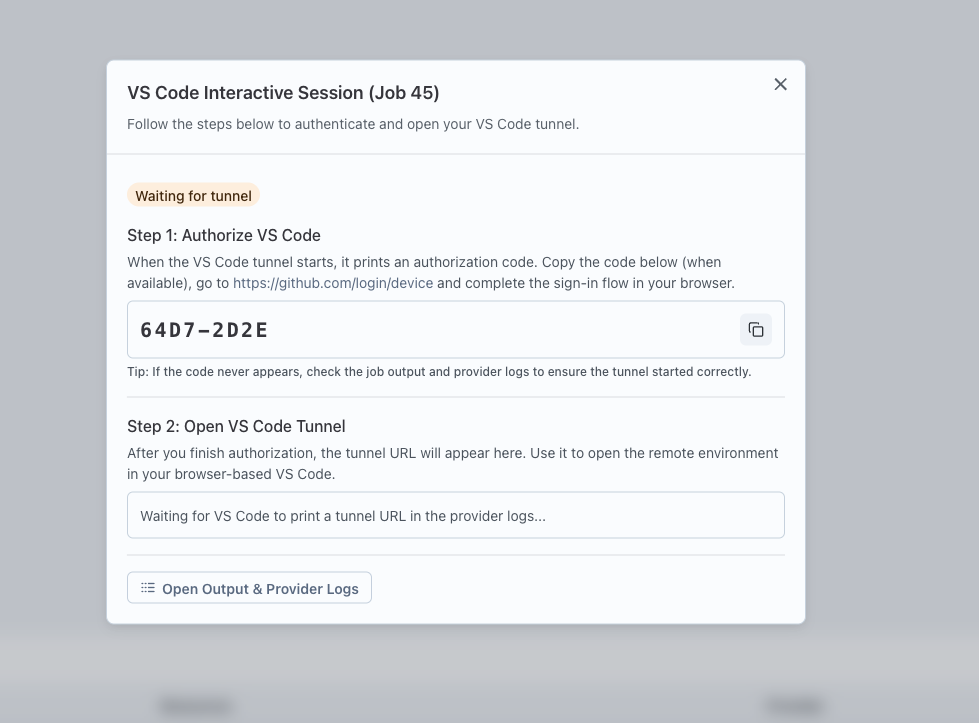
The setup involves a two-step process:
- Step 1: A code will be displayed. Go to github.com/login/device to authenticate and tie the tunnel to your GitHub account.
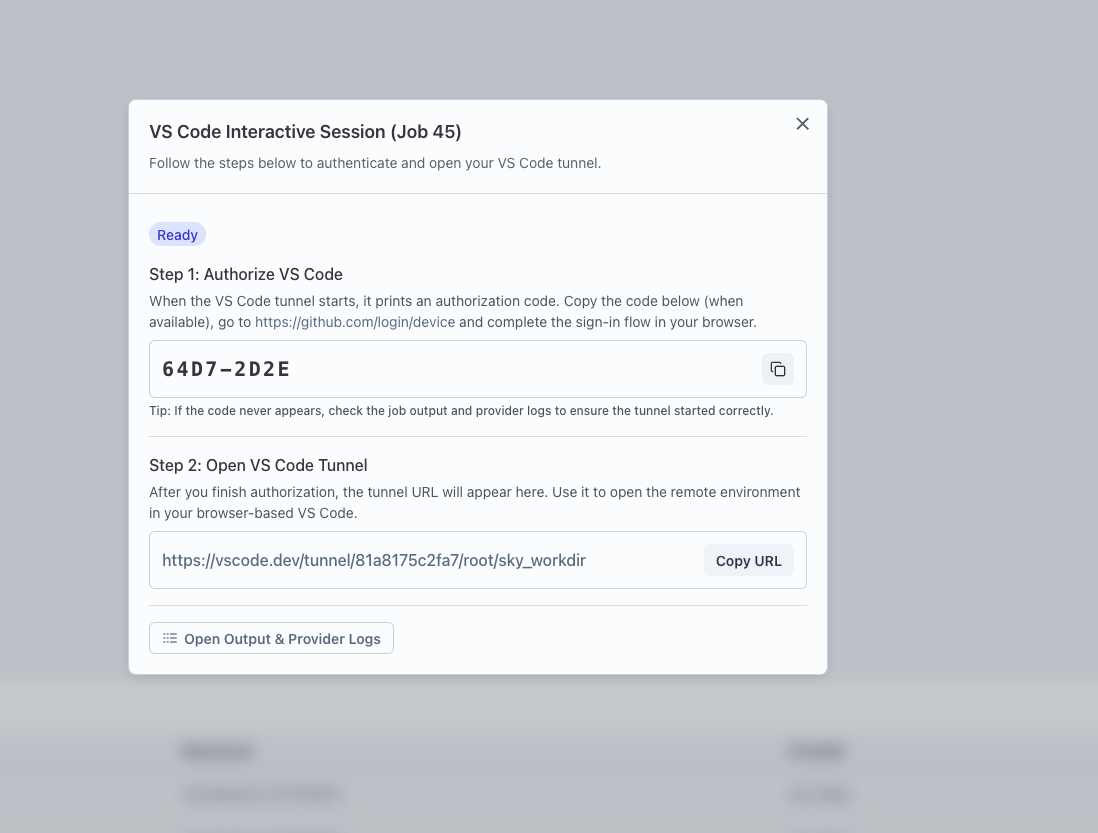
- Step 2: After authentication, reopen the card to see the URL for accessing VSCode running on the remote machine.
- Step 1: A code will be displayed. Go to github.com/login/device to authenticate and tie the tunnel to your GitHub account.
-
Follow the provided URL to access VSCode in your browser and start coding on the remote machine.